
You’re naturally curious to know how managers have completed the succession planning exercise. In this article, we explain how to interpret this report.
Once you’ve sent out a succession planning exercise, you can view the results at any time in the succession planning report. To do so, follow these steps:
- Click on “Organisation”
- Click on ‘Succession planning’
Overview and filters
The pie charts provide an overview of the succession planning for roles and managers. Here you can see how many roles/managers have been assigned a status. If you see the status ‘not available’, this is because you do not have the necessary permissions to view this information. The status is then hidden.
If no one has assigned a status to a role and/or manager, this will also be reflected in the overview.
Filters
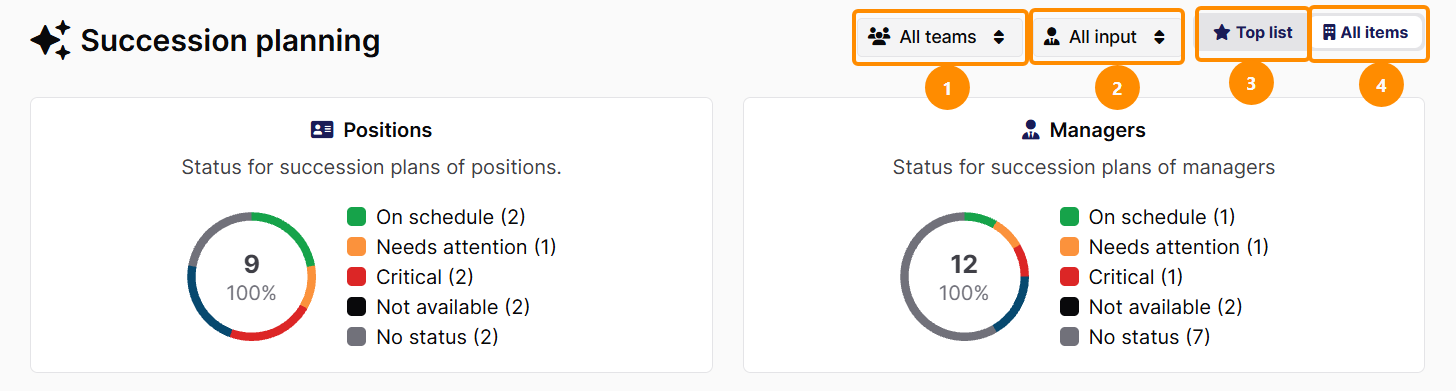
You can filter by:
- Specific teams
- The roles for which a manager can complete the succession plan.
- The roles and managers marked with an asterisk are shown in the ‘Top List’.
- All roles and managers are shown.
Succession planning for roles
Here you can see an overview of the succession planning that all managers in these roles have carried out. You can review this, but you can also make changes. This allows you to take all the input on board, whilst still making a final adjustment yourself based on your role.
- The ‘Export’ button allows you to export the succession plan in Excel format.
- You can use the star icon to add a role to your ‘top list’ if, for example, it is particularly important.
- Under ‘Current’, you can see which staff members currently hold the role.
- You can see which staff members have been nominated by managers to fill this role in the future, and in how many years’ time. You can also nominate additional staff members here yourself, or adjust the number of years for staff members who have already been nominated.
- This is an overview of the priority level that managers have specified for this role.
- Under ‘Status’, you can see the priority level and, if necessary, adjust it.
- Here you can see whether a manager has added any comments.
Succession planning for senior managers
Here you can see an overview of the succession planning that all senior managers have carried out for the managerial roles. You can review this, but you can also make changes. This allows you to take all the input on board, whilst still making a final adjustment yourself based on your role.
- The ‘Export’ button allows you to export the succession plan in Excel format.
- The asterisk allows you to assign a manager a role in your ‘top list’ when, for example, a position is particularly important.
- Under ‘Current’, you can see which staff members are currently the team leaders.
- You can see which staff members have been nominated by the team leaders to fulfil this managerial role in the future, and in how many years’ time. You can also nominate staff members yourself here, or adjust the number of years for staff members who have already been nominated.
- This is an overview of the priority level that the team leaders have specified for this role.
- Under ‘status’, you can view the priority level and adjust it if necessary.
- Here you can see whether a manager has added any comments.